

Table of Contents
- Start with a Smart Home Ecosystem
- Check Your Wi-Fi Network Before You Buy
- Best Smart Home Devices for Beginners
- Step-by-Step Smart Home Setup
- How to Secure Your Smart Home Network
- Save Energy and Cut Costs with Smart Home Setup
- Matter, Thread, and Firmware: Future-Proofing Your Setup
- Conclusion
- Frequently Asked Questions
Last Updated: September 14, 2026
Start with a Smart Home Ecosystem
Learning how to set up smart home electronics for beginners starts with one decision: which ecosystem will run the show. An ecosystem is the platform that connects your devices, hosts your companion app, and processes your routines. Choose it first, switching later means re-pairing every device and rebuilding every routine by hand.
The two dominant platforms are Google Home and Amazon Alexa, and both handle the basics well. The differences show up in the details.
Google Home vs Alexa Smart Home Features
Google Home leans on the Assistant's conversational strength and tight Android integration. Alexa counters with the widest device compatibility and routine-building most beginners find easier. Here's how the google home vs alexa smart home features comparison shakes out:
| Feature | Google Home | Alexa |
|---|---|---|
| Voice assistant | Google Assistant | Alexa |
| Best for | Android households | Mixed-device homes |
| Routine builder | Simple, app-based | More granular triggers |
| Device compatibility | Strong, growing | Broadest available |
| Local control | Limited; most routines run in the cloud | Limited; some Echo hubs run select routines locally |
| Hub hardware | Nest Hub, Nest Hub Max | Echo, Echo Show, Echo Dot |
What an Ecosystem Actually Controls
An ecosystem is more than a voice assistant. It owns four things:
- The companion app, where you pair devices, name rooms, and build routines.
- The voice layer, which assistant answers when you say "turn off the kitchen lights."
- The automation engine, the rules that fire when a sensor trips or a time hits.
- The account, the identity that ties your devices, payment methods, and data together.
That last item is the one beginners underestimate: your ecosystem account is the master key to every gadget, so two-factor authentication belongs on it from day one.
Hubs, Bridges, and Why They Matter
Some devices connect straight to Wi-Fi. Others, Zigbee and Z-Wave sensors, many smart locks, most battery-powered buttons, need a hub or bridge that translates their low-power radio signal for your network. A hub also lets certain routines run locally, so lights still respond when your internet drops.
Before committing to an ecosystem, check whether the hub you'd need is built into a device you already plan to buy (an Echo Show or Nest Hub) or sold separately. Buying an unplanned hub is a common beginner surprise.
Lock-In: What You Can and Can't Take With You
Switching ecosystems is painful but not impossible. Wi-Fi devices usually re-pair after a factory reset. Zigbee and Z-Wave devices are tied to their hub, so a new hub means re-pairing each one. Cloud-only devices may lose features if the manufacturer drops support. The more devices you own, the higher the switching cost, so pick deliberately the first time.
A Quick Decision Framework
If you're stuck, answer these three questions in order:
- Which assistant do you already talk to? Whichever one is on your phone or in your kitchen wins by default.
- Do you need local control? If you want routines that survive an internet outage, prioritize a hub with local processing.
- How many devices do you plan to add? The larger the eventual count, the more a broad-compatibility ecosystem matters.
Answer those honestly and the choice usually makes itself.
Check Your Wi-Fi Network Before You Buy
A stable Wi-Fi network matters more than any single device. Most smart home gadgets run on the 2.4 GHz band, which travels farther through walls than 5 GHz but carries less data (fcc.gov). That's fine for a smart plug or motion sensor, but it's why a smart camera can stutter on a crowded network.
Before you buy anything, check three things:
- Whether your router broadcasts a separate 2.4 GHz network
- How many devices are already connected
- Whether your signal reaches the rooms where you'll place gadgets
If your router is older or your home is large, a mesh network solves coverage gaps across multiple nodes. Many beginners skip this step, then blame the device when a smart bulb drops offline.
Best Smart Home Devices for Beginners
The best smart home devices for beginners deliver obvious value with minimal setup. Start with a smart plug, a smart bulb, and a smart speaker, those three cover lighting, scheduling, and voice control, and teach you how pairing works before you invest in anything complex.
Here's what each starter category actually does, so you know what you're buying before you buy it.
Smart Plugs
A smart plug sits between an outlet and whatever you plug into it, turning an ordinary appliance into something you can schedule or control by voice. It's the cheapest way to test whether a smart home fits your habits, since it works with lamps, fans, space heaters, holiday lights, and coffee makers you already own. Look for plugs that report energy use, and avoid high-draw appliances like space heaters on a plug rated for lower amperage, check the rating against the appliance's wattage.
Smart Bulbs
Smart bulbs replace your existing bulbs and add dimming, color, and scheduling without wiring. Two things trip up beginners: bulbs need constant power, so a wall switch that cuts power knocks them offline, and mixing brands in one fixture can cause flicker or pairing conflicts. To keep a wall switch working normally, pair the smart bulb with a smart switch instead of a standard one.
Smart Speakers and Displays
A smart speaker is the voice front door to your ecosystem, and often the cheapest way to get a hub built in, many Echo and Nest displays include the radios Zigbee and Thread devices need. If you plan to add sensors or locks, buying a speaker with a built-in hub up front is cheaper than buying a plain speaker now and a hub later.
Security and Entry Control Devices
Once the starter three are running, layer in security and entry control devices: a smart camera, video doorbell, or smart lock. Add a motion sensor for lights that respond to movement. Each category builds on the last, so you're never troubleshooting five new things at once.
A few sequencing notes that save headaches:
- Cameras and doorbells are the most bandwidth-hungry devices in a beginner setup. Add them after you've confirmed your Wi-Fi reaches the front door.
- Smart locks replace existing deadbolts and usually need a hub or a Matter/Thread connection to be reachable when you're away from home.
- Motion sensors are battery devices, so they typically need a hub, plan for that purchase before you buy the sensor.
A Realistic First-Year Order
Most beginners do best adding one category per month:
- Month 1: Smart plug and smart bulb, learn pairing and routines.
- Month 2: Smart speaker or display, add voice control and, if you chose well, a hub.
- Month 3: Smart camera or video doorbell, extend coverage to the entry.
- Month 4+: Smart lock, motion sensors, and any room-specific devices.
Spacing purchases keeps your troubleshooting load low and shows you which routines you actually use before automating more of the house.
Step-by-Step Smart Home Setup
Setting up a starter kit of three or four gadgets takes about an hour. The pattern is always the same: install the app, create an account, pair the device, build routines. Once you've done it twice, the rest go quickly.
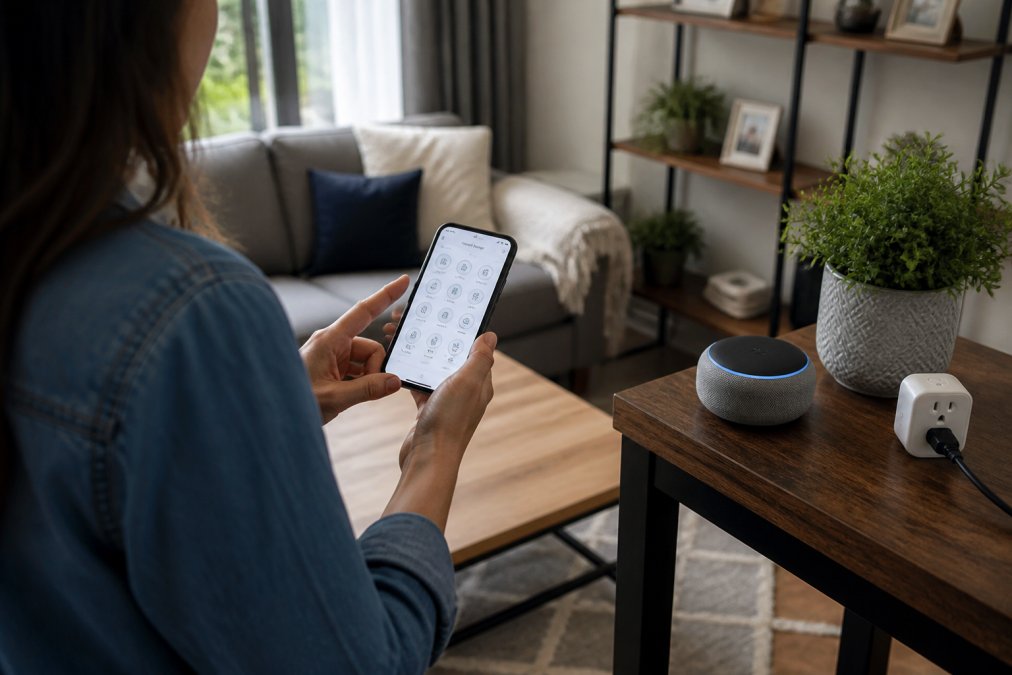
Here's the full sequence.
Step 1: Install the Companion App and Create an Account
Download the companion app for your ecosystem, create an account, and enable two-factor authentication immediately. The app is your control center for pairing, routines, and remote access, and a compromised account exposes every gadget in your home.
Step 2: Pair Your First Devices
Plug in your first device and open the app. Most platforms detect new hardware automatically and walk you through pairing in a few taps. Keep the device within a few feet of your router during pairing, then move it to its permanent spot. If pairing fails, restart the device before assuming it's defective.
Step 3: Set Up Routines and Automations
Routines and automations are where a smart home starts saving you time. A routine is a sequence triggered by one action: saying "good morning" turns on lights, starts the coffee maker, and reads the weather. An automation runs on its own, like lights that fade on at sunset.
Start with two routines:
- A morning routine tied to your alarm or a voice command
- A bedtime routine that locks doors and dims lights
How to Secure Your Smart Home Network
Learning how to secure your smart home network comes down to three habits: strong unique passwords, current firmware, and a separate network for your devices. Encryption only protects data in transit if you've changed default credentials, which are published publicly and targeted constantly.
Work through this checklist:
- Change every default device password
- Enable two-factor authentication on your ecosystem account
- Turn on automatic firmware updates
- Create a guest network for smart devices
- Review app permissions and disable remote access you don't use
The Federal Trade Commission's guidance on securing your home network recommends treating smart devices like any other connected computer, which means updates and passwords matter as much as they do on a laptop.
Save Energy and Cut Costs with Smart Home Setup
Energy savings come from scheduling, not the gadgets themselves. A smart plug that turns off a space heater or lamp on a timer prevents standby drain that quietly adds to your bill. Smart bulbs use a fraction of the power of incandescent bulbs and last far longer, so savings compound.
The U.S. Department of Energy's tips on home energy use notes that standby power and unnecessary lighting are among the easiest household costs to trim. Automations make that trimming automatic. Set lights to turn off when nobody's home, and schedule devices to power down overnight. You'll notice the difference on your next utility statement.
Matter, Thread, and Firmware: Future-Proofing Your Setup
Matter and Thread are the two standards reshaping how smart devices talk to each other, and buying with them in mind saves you from replacing gear in two years. Matter is a shared language that lets different brands work together; Thread is a low-power protocol built for battery devices like sensors and locks. Together they reduce the interoperability headaches of early smart homes.
Firmware updates keep that promise alive. Enable automatic updates so devices pick up security patches and new features without you thinking about it. Check the app every few months for prompts, and replace any device whose manufacturer has stopped issuing updates.
Conclusion
The hardest part of a smart home isn't the technology; it's knowing where to start and how to keep it secure as it grows. Uniq Trenz carries a curated range of trending home and lifestyle essentials, including compact gadgets and electronics built for real, everyday use. Start with one ecosystem, secure it properly, and add devices as your routines demand.
Frequently Asked Questions
What are the steps to set up a smart home for a beginner?
Start by picking one ecosystem like Google Home or Alexa. Check your Wi-Fi: most smart devices need a 2.4 GHz band. Then install the companion app, create an account, and pair your first device such as a smart plug. Add more devices one at a time, set up routines, and secure your network with a strong password and encryption.
Do I need a smart home hub to connect my devices?
Not always. Many smart plugs, bulbs, and cameras connect directly to Wi-Fi and work through their own app. A hub or bridge becomes useful if you use Zigbee, Z-Wave, or Thread devices, or if you want local control when the internet is down. If you choose Matter-compatible devices, a hub may still help with interoperability across ecosystems.
What are the most common security risks with smart home electronics?
Common risks include weak passwords, unencrypted connections, and outdated firmware. To secure your smart home network, use a unique password for each device, enable two-factor authentication, keep firmware updated, and consider a separate Wi-Fi network for IoT devices. Also check privacy settings in each companion app to limit data sharing.
Can I set up a smart home without professional installation?
Yes. Most beginner-friendly devices like smart plugs, bulbs, and cameras are designed for DIY setup. You only need a smartphone, a stable Wi-Fi connection, and the device's companion app. Professional installation is rarely needed unless you're wiring smart switches or installing a complex multi-room system with in-wall components.
Building a smart home that actually works for your daily routine takes the right devices and a store you can trust. Uniq Trenz offers high-quality, durable electronics and home essentials with compact, travel-friendly designs, plus a curated selection across categories so everything you need lives in one place. Get started with Uniq Trenz and build a smart home setup that saves you time every morning.