

High-Performance Laptop Accessories for Professionals
Table of Contents
- Best Docking Stations for Professionals
- Ergonomic Laptop Stands for Desk Setup
- Mechanical and Wireless Keyboards for Extended Typing
- Precision Mice and Ergonomic Input Devices
- High-Speed External SSD for Video Editing and File Transfer
- Noise-Cancelling Headphones and Display Solutions
- Thermal Management and Cooling for High-Performance Workloads
- Building Your Professional Workstation Setup
Last Updated: August 13, 2026
High-Performance Laptop Accessories for Professionals
Building a productive workstation means more than just having a laptop. Professionals handling demanding workflows, video editing, software development, data analysis, know that the right peripherals eliminate bottlenecks, reduce physical strain, and keep your system running at peak efficiency during long work sessions.
This guide from Uniq Trenz breaks down the essential high-performance laptop accessories that move the needle on productivity and comfort, separating a frustrating setup from one that lets you focus entirely on your work.
Quick Picks
- Best Overall Docking Solution: CalDigit TS4 Thunderbolt 4 Dock, unmatched port variety and power delivery for creative professionals
- Best Ergonomic Mouse: Logitech MX Vertical, transforms wrist strain into natural positioning
- Best External Storage: Samsung T7 Shield, speed and durability for video professionals
- Best Budget Stand: Rain Design mStand, simple, effective, and built to last
Best Docking Stations for Professionals
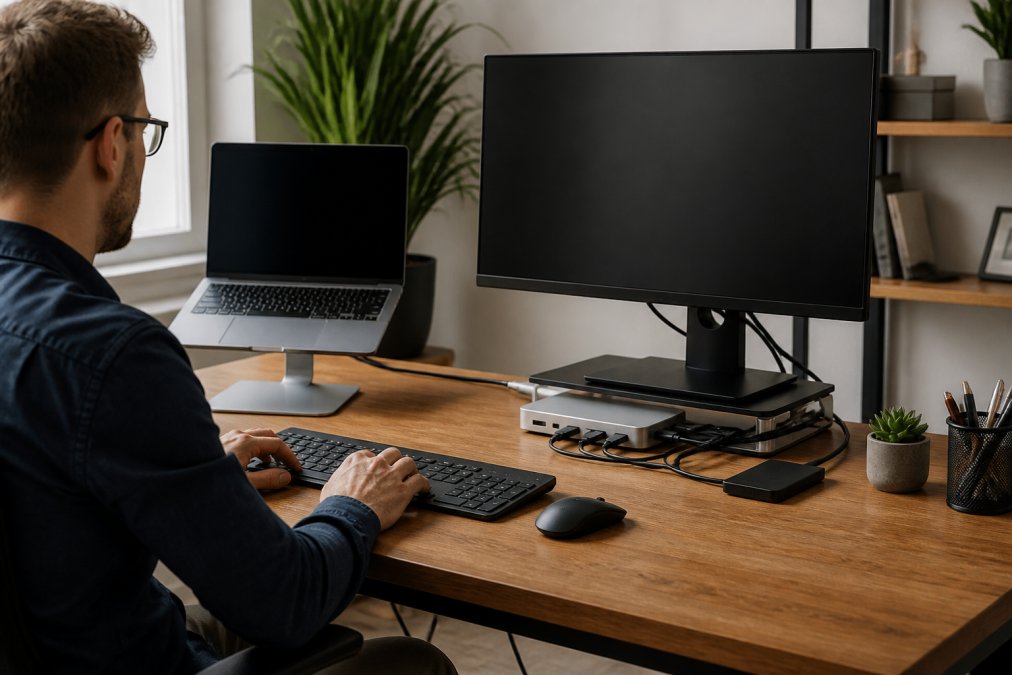
A docking station consolidates everything into a single connection, delivering power, video, data, and audio through one cable. If you're constantly plugging and unplugging, you're wasting time and stressing your laptop's ports.
The CalDigit TS4 Thunderbolt 4 Dock stands out with 18 ports covering virtually every connectivity need. It delivers up to 98W of power, supports dual 4K displays at 60Hz or a single 8K display, and provides 40Gbps Thunderbolt 4 bandwidth for rapid file transfers. The aluminum chassis and reliable connections make it the standard for creative professionals handling large video files or complex design projects. The CalDigit TS4 Thunderbolt 4 Dock is available for $379.99. The tradeoff is the premium price.
The Anker Prime DL7400 offers similar capability with 13 ports, 100W power delivery, and dual 4K support at a comparable price point. Anker occasionally requires firmware updates for peak performance, whereas CalDigit's approach is more plug-and-play stable.
| Docking Station | Power Delivery | Port Count | Best For | Key Limitation |
|---|---|---|---|---|
| CalDigit TS4 | 98W | 18 | Creative professionals | Premium pricing |
| Anker Prime DL7400 | 100W | 13 | Multi-monitor setups | Firmware updates needed |
Ergonomic Laptop Stands for Desk Setup
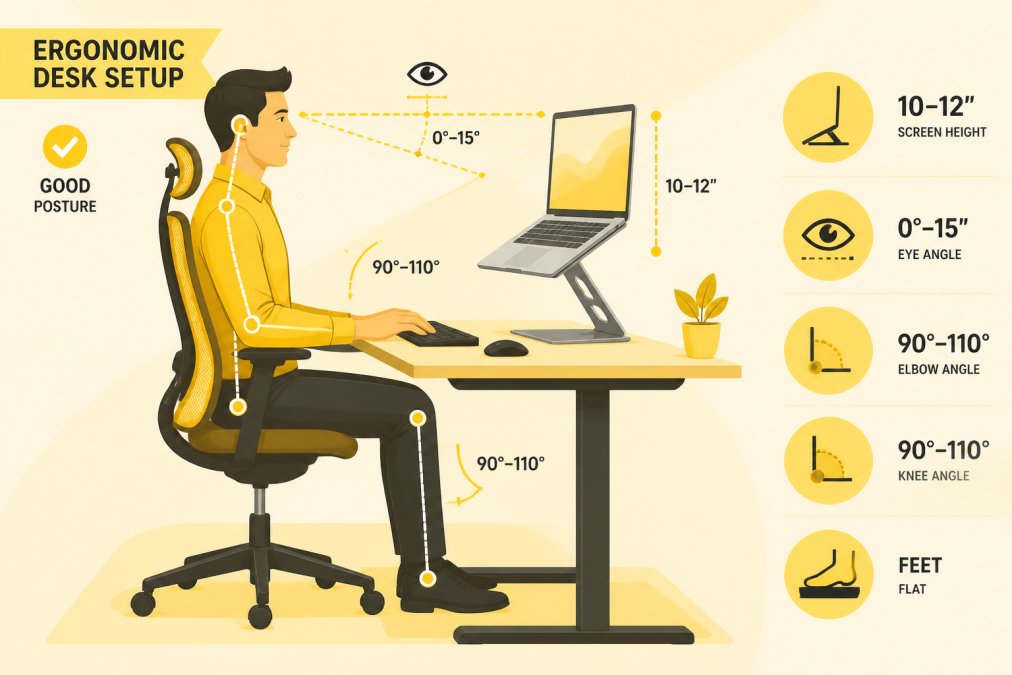
Laptop screens sit too low. After an hour of work, your neck is bent forward and your shoulders are rounded. An ergonomic laptop stand solves this by raising your screen to eye level.
The Rain Design mStand elevates your laptop 5.9 inches with a single-piece aluminum design. It's not adjustable, but that height is calculated for proper ergonomics when paired with an external keyboard and mouse. The aluminum construction never wobbles, and the cable management opening keeps your desk organized. The Rain Design mStand is available for around $48.82 to $54.99. The limitation: it's not portable.
Elevating your laptop also improves airflow around the base, reducing thermal throttling during intensive tasks. For professionals running video renders or compiling code, this passive cooling advantage extends your laptop's performance window before fans kick in.
The stand's 5-7 degree tilt toward you reduces glare and further improves neck positioning, which is why it's become a popular choice for ergonomic-conscious professionals.
Mechanical and Wireless Keyboards for Extended Typing
Extended typing sessions demand a keyboard that reduces finger fatigue and supports natural hand positioning.
The Logitech ERGO K860 uses a split, curved design that keeps your hands in a more natural position. The adjustable palm rest has three layers of cushioning, and the tilt angle is customizable. Multi-device connectivity via Bluetooth or USB receiver means you can switch between your laptop, tablet, and phone without plugging and unplugging. The learning curve is real; your fingers will feel awkward for the first week. But after adjustment, the reduction in wrist strain is noticeable.
Ergonomic positioning matters more than mechanical switches. A mechanical keyboard with poor ergonomics will hurt more than a membrane keyboard with proper support. The ERGO K860 prioritizes comfort for professionals typing 6-8 hours daily.
Common mistake: positioning your keyboard too high or too low. Your elbows should be at 90 degrees with neutral wrists. A keyboard tray or desk adjustment is often necessary.
Precision Mice and Ergonomic Input Devices
Your mouse choice directly impacts wrist health. A traditional mouse forces your wrist into pronation, compressing nerves and creating repetitive strain over months.
The Logitech MX Vertical positions your hand in a handshake grip, keeping your wrist neutral. The 57-degree vertical angle minimizes forearm rotation. The 4000 DPI sensor is precise enough for detailed design work, and three connectivity options (USB-C, Unifying Receiver, Bluetooth) mean you can use it across multiple devices. The adjustment period is 3-5 days; after that, traditional mice feel awkward.
The limitation: it's right-hand only. What separates this from cheaper vertical mice is the sensor quality and build consistency. Budget vertical mice often have tracking issues or loose buttons after a few months. The MX Vertical maintains precision and reliability across years of daily use.
High-Speed External SSD for Video Editing and File Transfer
Video professionals and anyone handling large file transfers need external storage that keeps pace with their workflow. Bottlenecks happen at the storage layer.
The Samsung T7 Shield delivers 1,050 MB/s read speeds and 1,000 MB/s write speeds. A 4K video file (50GB) transfers in under a minute. The IP65 rating means it survives dust and water exposure, and the rubberized exterior handles drops up to 9.8 feet. For professionals working on location or at client sites, this durability matters.
A 10-minute 4K timeline that takes 8 minutes to render on a slow external drive takes 3 minutes on the T7 Shield. Over a week of editing, that's hours reclaimed. Capacity planning matters: a 1TB drive costs around $59.99 to $129.99, but many video projects demand 2TB or more. A 4TB drive can be found for around $299.99 to $1,144.99. Consider redundancy with two smaller drives instead of one large one to protect against total data loss.
Noise-Cancelling Headphones and Display Solutions
Concentration is a resource. Noise-cancelling headphones protect it by eliminating environmental distractions, whether you're in an open office, coffee shop, or home with background activity.
The Sony WH-1000XM5 headphones feature industry-leading noise cancellation with two processors and eight microphones. They actively cancel ambient noise, leaving you in a quiet space even in a busy environment. Thirty hours of battery life means they last through a full work week on a single charge. The adjustment period is minimal; they're comfortable immediately.
For display solutions, the Dell UltraSharp U2723QE 27-inch 4K monitor integrates a USB-C hub, delivering video, data, and up to 90W power through a single cable. The 4K resolution is essential for detailed design work, photo editing, or spreadsheet analysis. The Dell UltraSharp U2723QE 27-inch 4K monitor is available for around $658.00. The built-in KVM switch lets you control multiple devices from one keyboard and mouse, simplifying multi-device workflows.
The tradeoff is size and cost. A 27-inch 4K monitor occupies significant desk space and commands a premium price. For professionals with limited desk real estate, a 24-inch 1440p alternative might be wiser.
Thermal Management and Cooling for High-Performance Workloads
Thermal throttling is invisible until it hits. Your laptop's performance drops, fans spin loudly, and you don't immediately connect it to overheating. Extended sessions running video rendering, 3D modeling, or code compilation generate sustained heat that throttles performance.
The Thermaltake Massive TM cooling pad uses dual 120mm fans to pull heat away from your laptop's base. The temperature sensor displays real-time readings, and fan speed adjusts automatically or manually. For professionals running resource-intensive applications, this prevents performance degradation and extends hardware lifespan. The Thermaltake Massive TM cooling pad is available for around $39.99 to $59.99.
Modern laptops are designed for casual use. Sustained high-performance workloads exceed their thermal budget. An external cooling pad bridges that gap. The tradeoff is noise at maximum fan speed, but for many professionals, the performance gain justifies it.
Building Your Professional Workstation Setup
A professional workstation is the sum of its parts working together. Individual components matter, but integration matters more.
Start with your monitor. This is your primary interface; its quality affects everything downstream. A 27-inch 4K display with USB-C hub connectivity centralizes your setup with one cable carrying video, data, and power.
Next, establish proper ergonomics. Your laptop stand elevates the screen to eye level. Your keyboard and mouse position your hands at 90-degree elbow angles with neutral wrists. Your chair supports your lower back. These aren't optional upgrades; they're the foundation preventing chronic pain.
Then add supporting peripherals. Noise-cancelling headphones protect focus. External SSD storage accelerates file workflows. A cooling pad prevents thermal throttling during intensive sessions. Each component solves a specific problem; together, they create an environment where sustained high-performance work is comfortable and efficient.
Cable management completes the setup. A docking station with organized ports reduces clutter. Desk-mounted cable trays keep cables visible and accessible. An organized workspace reduces cognitive load.
This approach isn't about buying the most expensive components. It's about choosing components that solve real problems in your workflow, then integrating them thoughtfully. A laptop stand paired with an ergonomic keyboard and mouse creates more value than a flashy desk accessory that doesn't address your actual needs.
Uniq Trenz curates high-performance laptop accessories for professionals across all these categories, offering a simplified shopping experience where you can build your complete setup in one place.
Comparison Table: Essential Accessories by Professional Role
| Professional Role | Priority Accessory | Secondary Accessory | Why It Matters |
|---|---|---|---|
| Video Editor | High-Speed External SSD | 4K Monitor | Fast file transfer and color-accurate editing |
| Software Developer | Ergonomic Keyboard | Docking Station | Reduces wrist strain during extended coding sessions |
| Graphic Designer | 4K Monitor | Precision Mouse | Pixel-perfect work and accurate color reproduction |
| Content Creator | Noise-Cancelling Headphones | Cooling Pad | Focus for editing and thermal management during rendering |
| Financial Analyst | Ergonomic Keyboard & Mouse | Docking Station | Comfort during long spreadsheet sessions with multi-monitor setup |
Frequently Asked Questions
What are the most useful laptop accessories for professionals?
The most useful laptop accessories for professionals include a docking station for expanded connectivity, an ergonomic keyboard and mouse to reduce strain, an external SSD for fast file transfers, and a laptop stand to improve posture. Adding noise-cancelling headphones helps maintain focus in shared workspaces. A cooling pad prevents thermal throttling during intensive work. These accessories work together to create a productive, healthy workstation that reduces fatigue and improves workflow efficiency throughout the workday.
Do docking stations improve laptop performance?
Docking stations don't directly improve CPU or GPU performance, but they enhance your overall productivity and workstation capability. They provide expanded connectivity through multiple USB ports, Ethernet for faster internet, and high-bandwidth data transfer via Thunderbolt 4 or USB-C. This means faster file transfers, reduced cable clutter, and the ability to run multiple external displays simultaneously. For professionals handling large video files or working with external storage, a docking station with high power delivery ensures your laptop charges while running demanding applications without performance drops.
What are the best ergonomic accessories for long work hours?
The best ergonomic accessories include a split keyboard with wrist support, an ergonomic mouse with a vertical design to reduce wrist strain, and a laptop stand that elevates your screen to eye level. These work together to maintain proper posture and reduce repetitive strain injuries. A cooling pad underneath your laptop prevents overheating that can cause you to adjust your position frequently. Noise-cancelling headphones reduce the need to turn up volume or lean forward. Investing in these accessories prevents fatigue and discomfort that compounds over eight-plus hour workdays.
How can I optimize my laptop for high-performance work with accessories?
Optimize your laptop by combining thermal management, storage expansion, and connectivity solutions. Use a cooling pad to maintain stable performance during resource-intensive tasks like video editing. Add a high-speed external SSD for fast file access and backup, reducing reliance on your laptop's internal drive. A docking station with Thunderbolt 4 provides 40 Gbps bandwidth for rapid data transfer and supports multiple displays for multitasking. Pair these with an external monitor for better color accuracy and screen real estate. This setup prevents thermal throttling, speeds up workflows, and reduces the strain on your laptop's hardware.
This article was written using GrandRanker